Download MT Auto Clicker
Download the free auto clicker that actually does more — clicks, scrolls, macros, hotkeys, screenshots, and more. All in one tool. All for free.
Windows
Windows 10 / 11 · x64
macOS
macOS 12+ · Apple Silicon & Intel
How to Download and Install MT Auto Clicker
Visit the Official Website
Open your browser and go to mtautoclicker.net — the only official source to download MT Auto Clicker safely.
Go to the Download Page
Click the Download button on the homepage to go to the download page.
Click the Download Button
Click Download for Windows or Download for Mac, depending on your system. Your file will start downloading immediately.
Run the Installer
Once downloaded, locate the setup file in your downloads folder and double-click to run it. Follow the on-screen instructions to complete the installation.
Launch and Start Automating
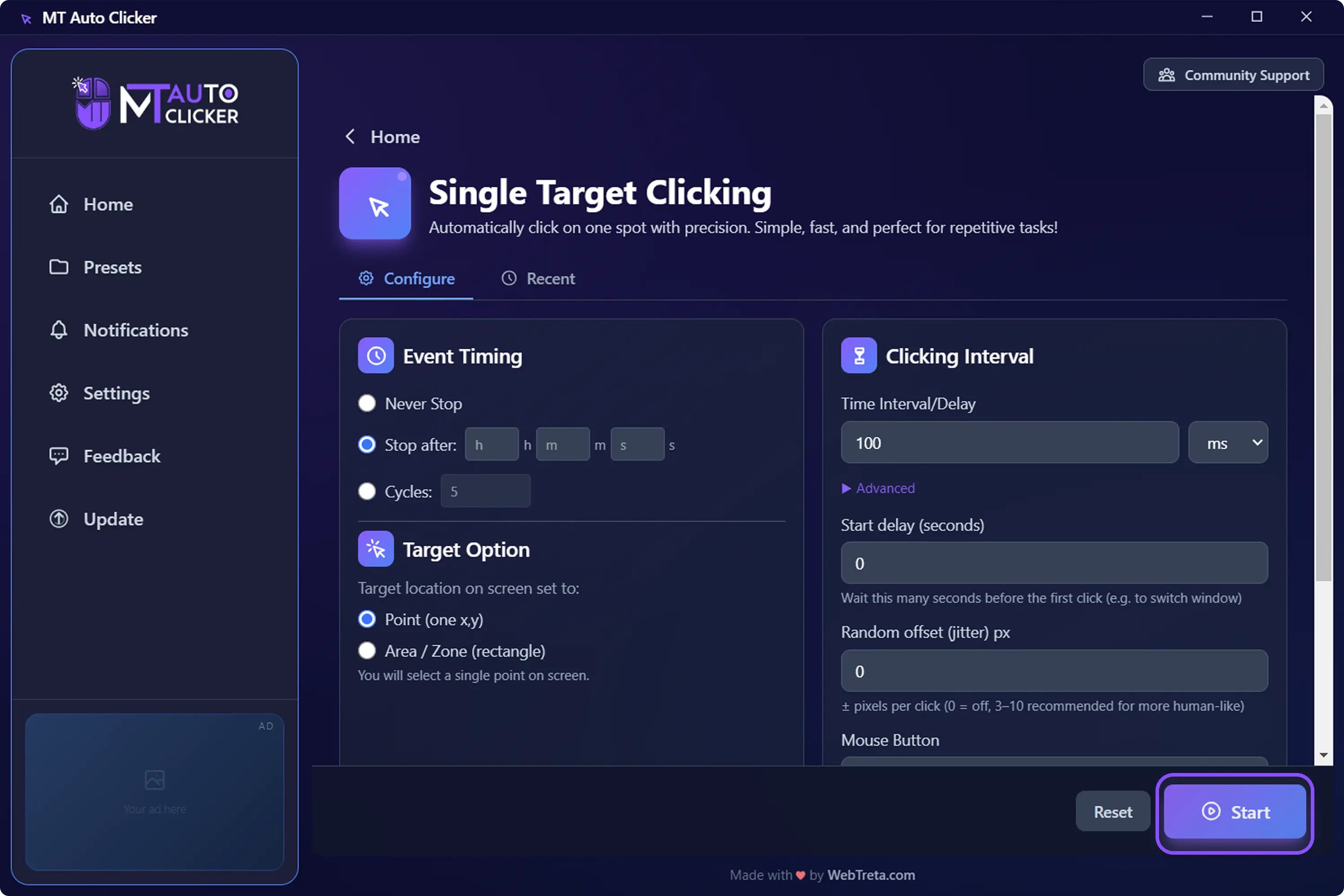
Once installed, open MT Auto Clicker from your desktop. You will see all 8 automation features ready to use from the dashboard.
How to Use MT Auto Clicker
Single Target Clicking is the simplest way to automate any repetitive click on your screen. Here is how to get started:
Open MT Auto Clicker
Open MT Auto Clicker and click Single Target Clicking from the dashboard.
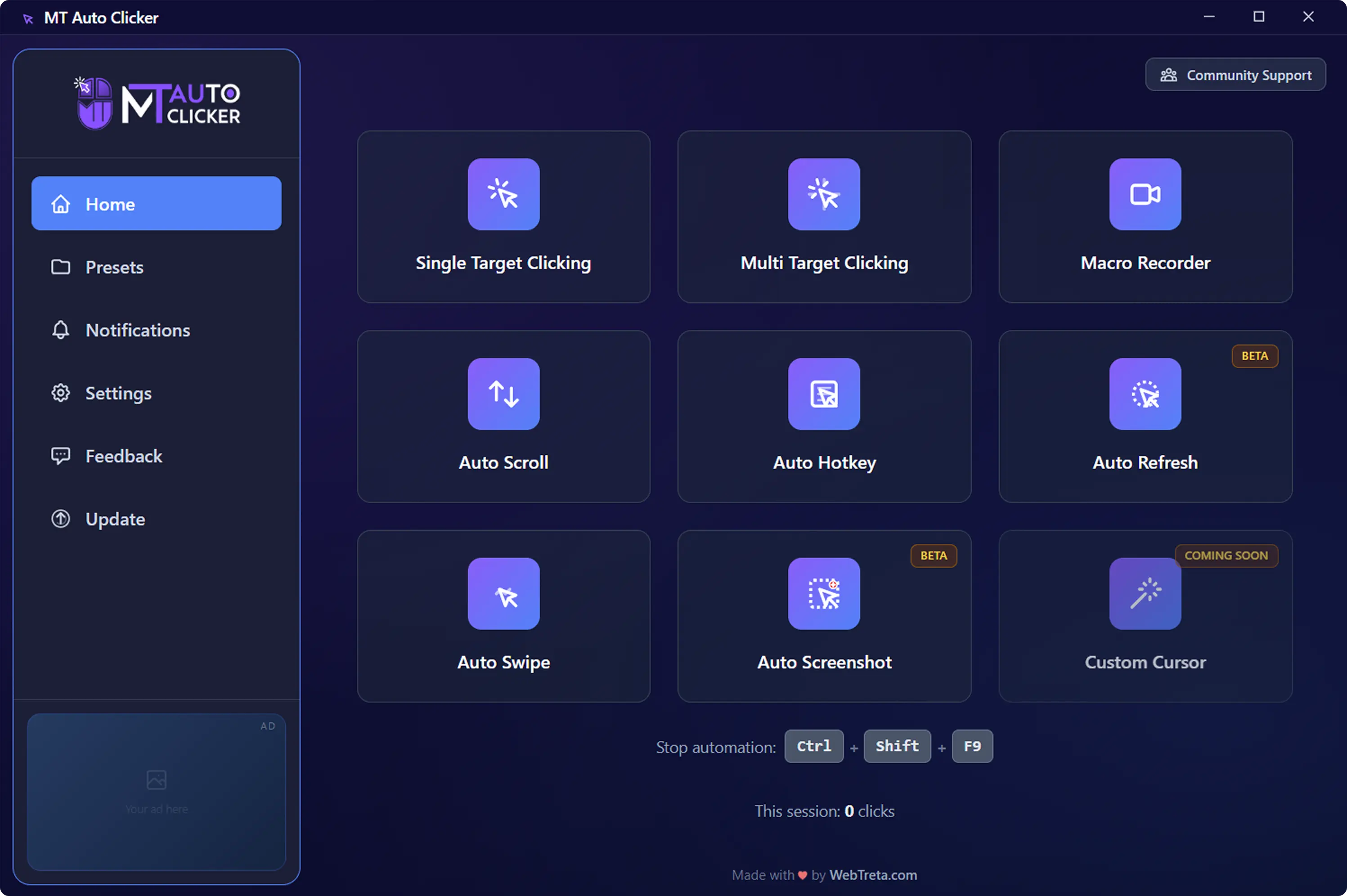
Set your Event Timing
Choose when to stop the automation:
- –Never Stop — runs until you stop it manually
- –Stop After — set a specific duration in hours, minutes, and seconds
- –Cycles — stop after a set number of clicks
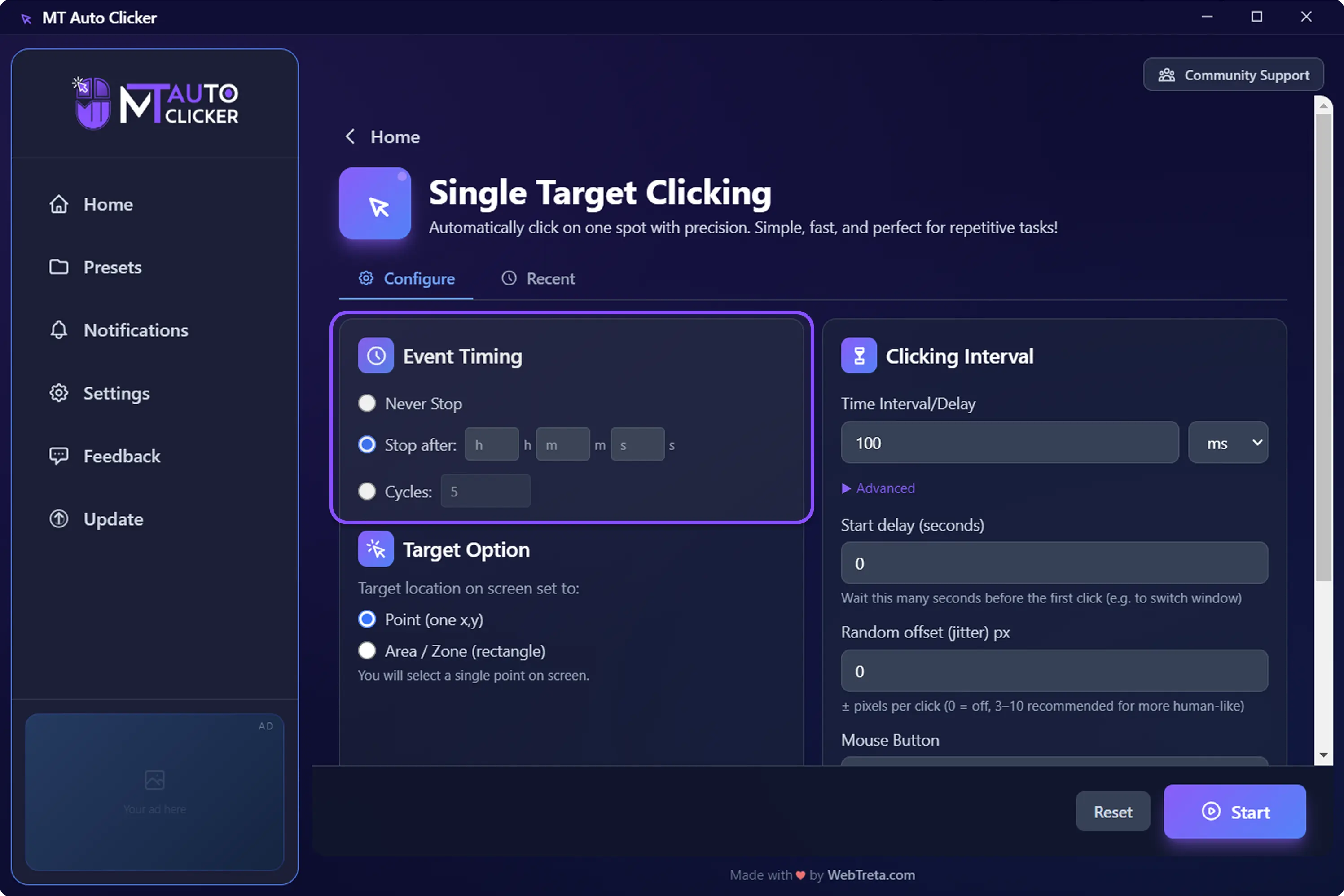
Choose your Target Option
- –Point — clicks one exact pixel on your screen
- –Area / Zone — clicks a random point inside a defined rectangle each time for more natural clicking
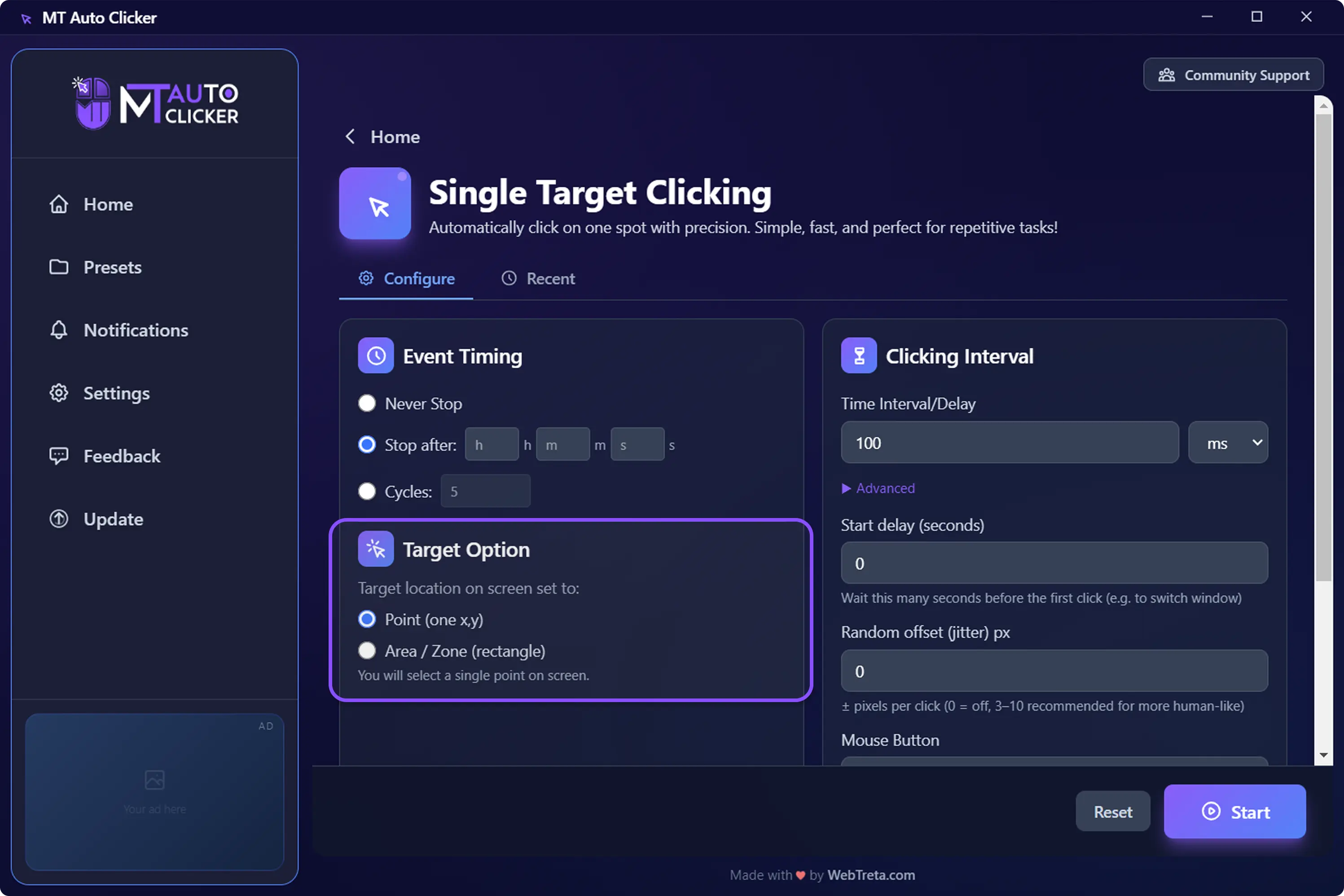
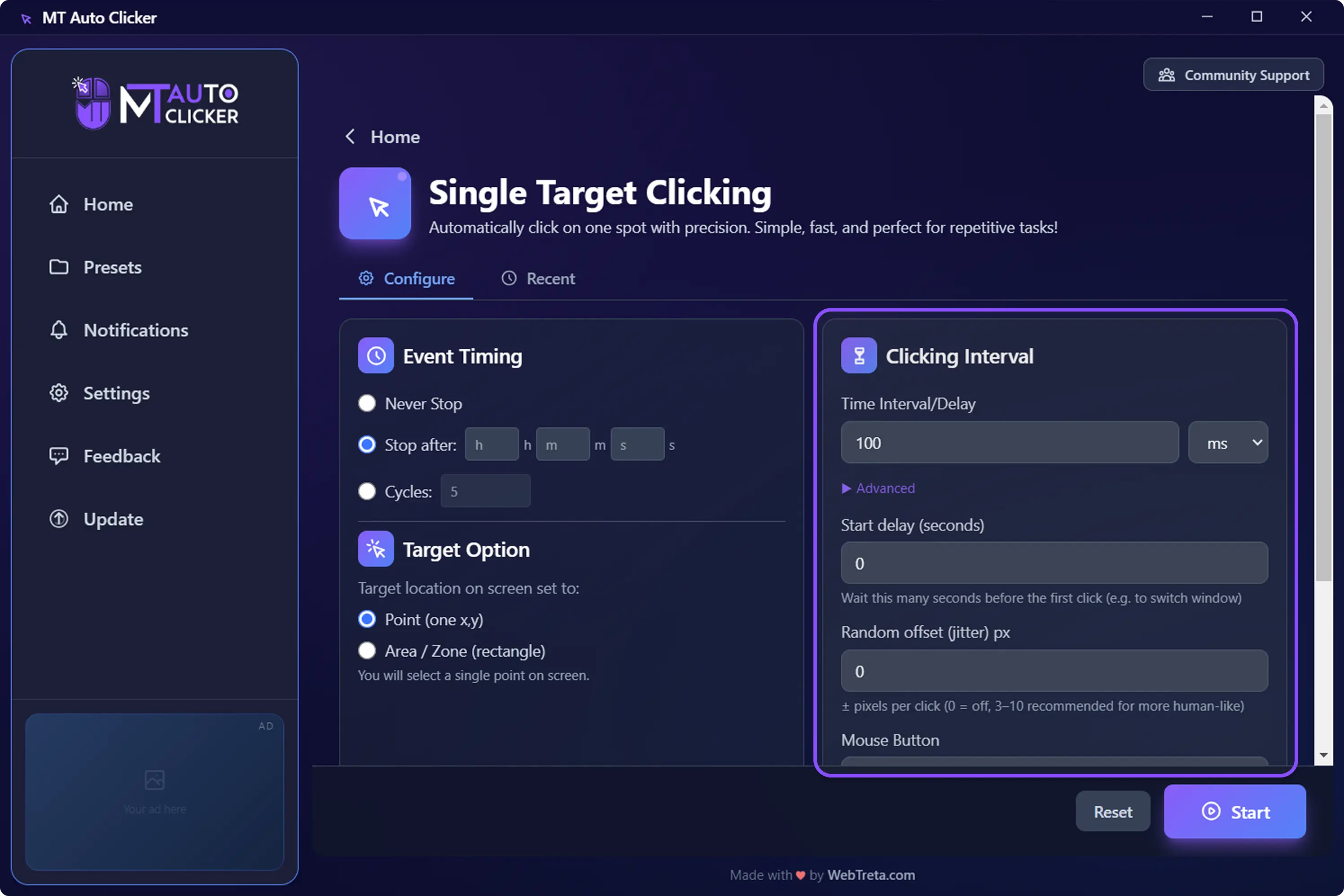
Set your Clicking Interval
Set how fast you want it to click in milliseconds or seconds. Under Advanced Settings, you can also configure:
- –Interval Type — Fixed or variable clicking
- –Start Delay — waits before the first click so you can switch to the right window
- –Random Offset — adds natural variation to click position for more human-like clicking
- –Mouse Button — Left or Right click
Click Start
The MT Control Bar appears on your screen. Click the + button to set your target position on screen. Your automation begins immediately.